Most QR codes look like a software bug printed onto paper. They're an artefact of the era when generators only knew how to render black squares on a white square — and most still do. But the format itself doesn't require ugliness. A QR is just a grid of high-contrast modules; everything else is choice.
Here's what changes when you actually design one — and the rules that keep it scannable.
A QR code is just a grid of high-contrast modules. Ugly is a choice.
1 · Pick a colour palette that has somewhere to go
The fastest improvement: stop using black on white. Pick two colours from your brand palette — one dark enough to scan reliably, one light enough to be the background — and use them. The QR immediately looks intentional instead of accidental.
Rule: the dot colour and the background need a luminance contrast ratio of at least 3:1, ideally 4.5:1. (Capy QR's editor warns you if you're below this.) Pastel pink on cream looks great on a screen and fails on a sticker. Test before you print.
2 · Pick a dot style
Old QR generators only knew "square". Modern ones offer rounded dots, small circles ("dots"), classy connected shapes, and pillow shapes. The dot style is the single biggest visual lever — it changes the whole feel of the QR.
- Rounded — modern, friendly, the safest choice if you're not sure
- Dots (small circles, separated) — playful, soft; best for backgrounds that should peek through
- Classy — connected curves, very stylised; suits editorial / fashion brands
- Square — bold, retro, slightly aggressive; works for tech / gaming
3 · Style the eye markers separately
The three large "corner squares" are the QR's eye markers — they're what scanners use to orient. Most QRs render them in the same colour and shape as the rest of the dots. They don't have to.
Picking a different eye colour (or a different shape) is the fastest way to make a QR feel custom. The right side uses Capy QR's "Peach" preset, which pairs a peach dot colour with a rose-pink eye colour — the small difference is what makes it look intentional.
Build yours in the editor → capyqr.com
4 · Add a logo, but earn it
A logo in the centre signals "this is real". A logo that's too big signals "this won't scan". The line is around 25% of the QR's area — beyond that, error correction can't recover the lost data reliably across all scanners.
Two practical rules:
- Always set error correction level to H when there's a logo. Capy QR auto-bumps to H whenever you upload one.
- Give the logo a small white quiet zone (the editor handles this — it's the "margin" slider on the centre image).
(The blog's static renderer doesn't compose centre logos, but the editor at capyqr.com does — upload your logo and click Match colors from logo to auto-theme the QR around it.)
5 · Match the QR to the brand, not the other way around
The most common mistake: design a QR in pretty colours, print it on merchandise, find out the QR clashes with everything else on the merchandise. The QR should be a brand element, not a tile that lives in its own visual world.
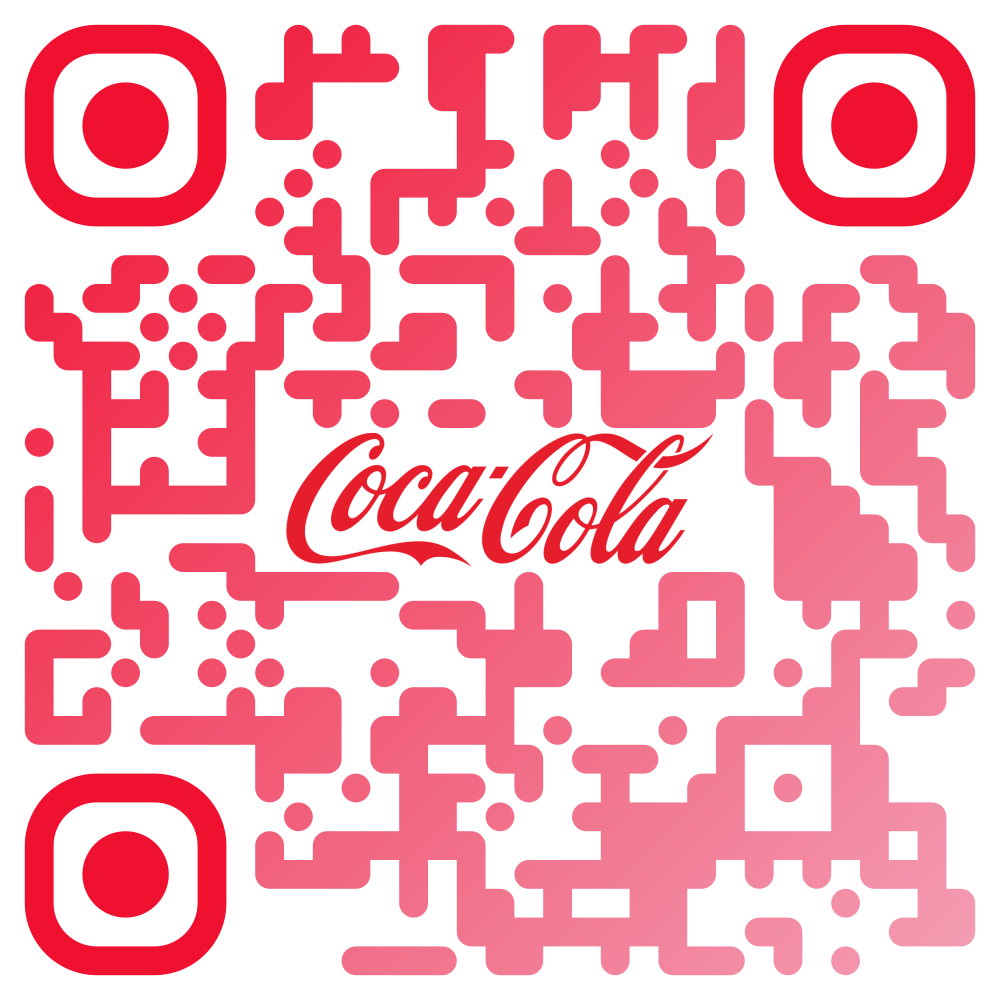

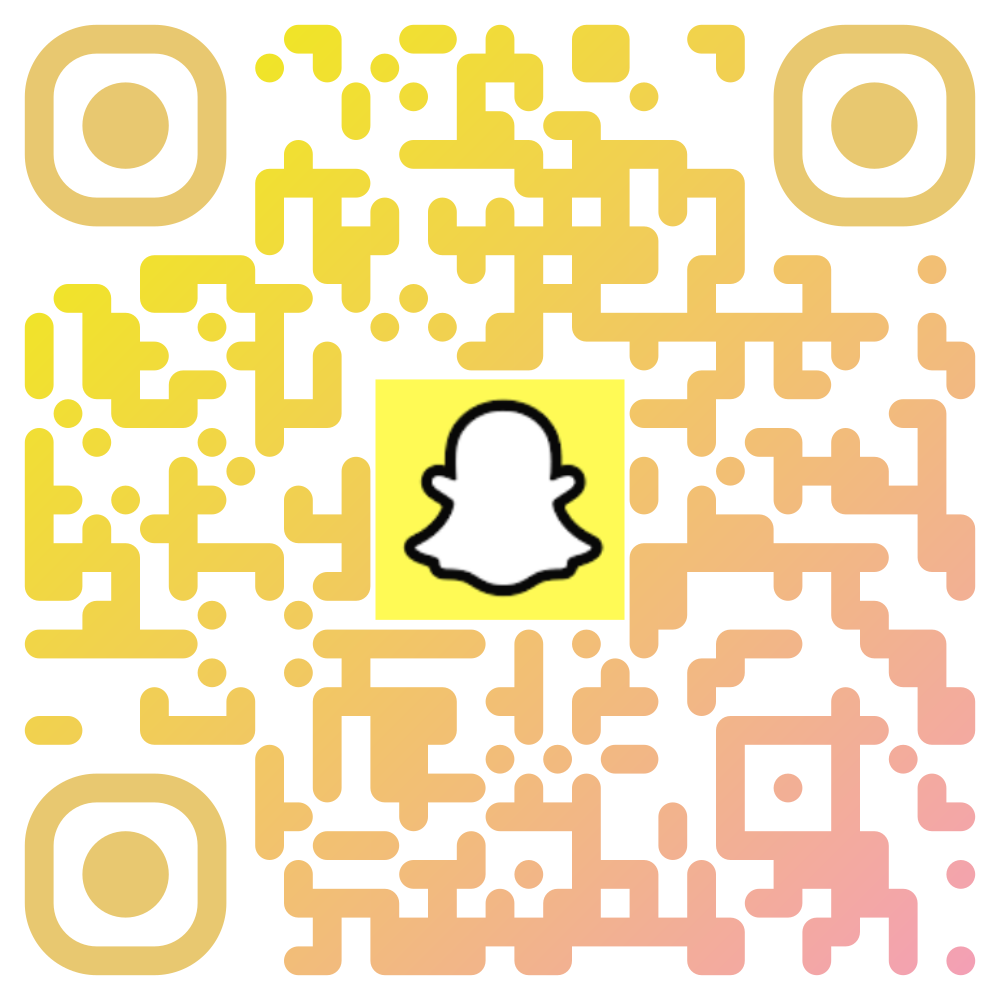
Capy QR has a "Match colours from logo" button — upload your logo, click it, and the QR's dot, eye, label, and border colours all rebase to the dominant palette of your logo. Quick way to get a cohesive starting point.
6 · Frame border, used sparingly
A thin, soft border around the QR canvas signals intent — like a card or a label. Used sparingly is doing a lot of work in that sentence. Borders that are too thick, too high-contrast, or in a colour unrelated to the QR look like cheap clip art.
Capy QR ships six border styles: solid, dashed, dotted, double, hearts, and flowers. The defaults match the dot colour, which is exactly the starting point you want.
7 · The label below ("Scan me" or your own copy)
Optional but high-impact. A short label below the QR ("Scan me", "Tap here", "Wi-Fi", or your own custom text) gives users an explicit cue. It's also the difference between a QR that's a graphic and a QR that's a prompt.
Two label rules:
- Keep it short — 8 characters or fewer reads well even at small print sizes
- Pick a colour that ties to the QR's palette, not pure black
The boring rules that keep it scannable
Design freedom is real, but a QR has to work. The non-negotiables:
- Contrast ≥ 3:1 between dot and background
- Quiet zone of at least 4 modules of empty space around the QR
- Logo ≤ 25% of QR area, error correction H
- Background image opacity ≤ 40% if you use one
- Test scan on two different phones before printing
A worked example
Built with the principles above: a brand colour palette, rounded dots, a complementary eye colour, generous quiet zone:
Make your own — the editor at capyqr.com ships eight presets that already follow these rules, so you can tweak from a working baseline rather than starting from scratch.